
Skip to content
No results
  • AssetIQ Help Portal
assetiq logo final horizontal jan 2026 trans website logo
Success Center
  • Home
  • Getting Started
assetiq logo final horizontal jan 2026 trans website logo
Success Center

Getting Started

6
  • Welcome to AssetIQ
  • Sign in to AssetIQ
  • Reset your AssetIQ password
  • Understand the Dashboard
  • Change Your Language in AssetIQ
  • Navigate AssetIQ and Use the Sidebar

Asset Management

8
  • Add Your First Asset
  • Edit an Asset
  • Find and Filter Assets
  • Assign an Asset
  • Import Assets
  • Export Asset Data
  • Generate Asset QR Codes
  • Scan an Asset QR Code

Maintenance

5
  • Introduction to Maintenance and Work Orders
  • Create a Work Order
  • Understand Work-Order Statuses
  • Review the Next Maintenance Date
  • Update and Complete a Work Order

Inspections

8
  • Introduction to Asset Inspections
  • Understand Inspection Types and Checklists
  • Create and Assign an Asset Inspection
  • Conduct and Submit an Asset Inspection
  • Record Inspection Findings and Defects
  • Review and Approve Inspection Results
  • View and Export Inspection Results
  • Create Follow-up Actions or Work Orders

Asset Audits

6
  • Introduction to Asset Audits
  • Understand Asset Audit Types
  • Create and Assign an Asset Audit
  • Conduct and Submit an Asset Audit
  • Review Audit Discrepancies
  • Export Asset Audit Results

Rental Management

12
  • Introduction to Rental Management
  • Understand the Rental Job Lifecycle and Statuses
  • Create a Rental Job
  • Add and Allocate Assets to a Rental Job
  • Check Asset Availability and Resolve Conflicts
  • Dispatch Assets and Start a Rental
  • Extend or Update an Active Rental
  • Return Assets and Record Their Condition
  • Close a Rental Job
  • View and Export Rental History
  • Manage Overdue Rentals and Outstanding Assets
  • Manage Rental Damage and Missing Items

Scheduling & Resources

8
  • Introduction to Scheduling and Resources
  • Understand the Scheduling Calendar
  • Find and Filter Scheduled Activities
  • Schedule Assets and Resources
  • Reschedule or Update an Activity
  • Identify and Resolve Scheduling Conflicts
  • Manage Resource Availability and Unavailability
  • View Asset and Resource Schedules

Reports & Analytics

8
  • Introduction to Reports and Analytics
  • Understand Dashboards and Key Metrics
  • Filter and Analyze Report Data
  • View Asset Management Reports
  • View Maintenance and Inspection Reports
  • View Rental and Utilization Reports
  • Export Report Data
  • Troubleshoot Report and Dashboard Data

Administration

2
  • Set Up Master Data
  • Invite Users and Assign Roles
View Categories
  • Home
  • Documentation
  • Getting Started
  • Sign in to AssetIQ

Sign in to AssetIQ

1 min read

0:00 / 1:18
  • View as Markdown Open this page as plain Markdown (opens in a new tab)
  • Open in ChatGPT Ask questions about this page (opens in a new tab)
  • Open in Claude Ask questions about this page (opens in a new tab)
  • Open in Google AI Studio Ask questions about this page (Google account required) (opens in a new tab)

Use this article to access AssetIQ with an active account and the sign-in method configured for your organisation.

Before you begin #

  1. Obtain the AssetIQ application address from your organisation administrator.
  2. Confirm that your AssetIQ account is active.
  3. Use a supported browser and a working internet connection.
  4. Have access to the configured sign-in method and any required verification device.

Sign in #

  • Open the AssetIQ application address supplied by your organisation.
  • On the sign-in page, use the sign-in method configured for your account.
  • Enter the requested account information. Do not share your password or verification code with anyone.
  • Select the sign-in action shown on the page.
  • If additional verification is requested, complete it using your registered method.
  • Confirm that AssetIQ opens the landing page and modules permitted for your assigned role.
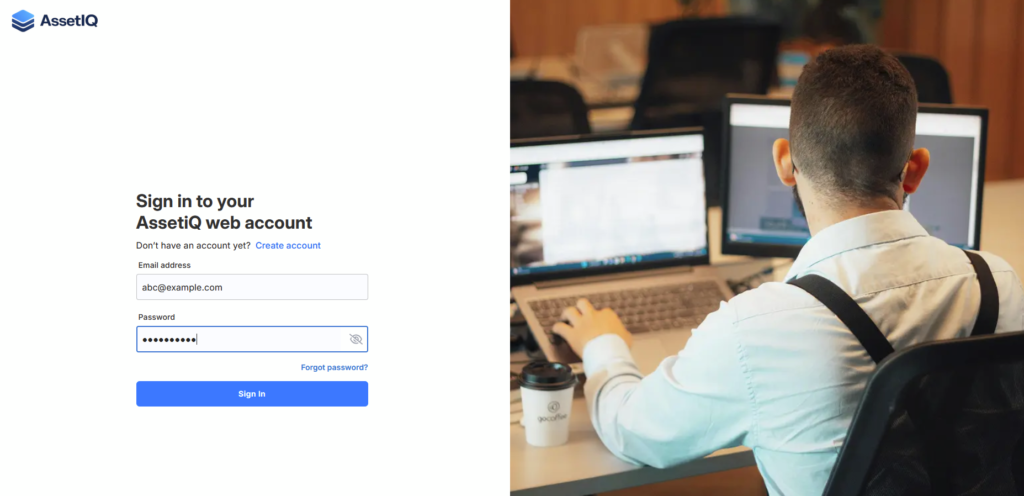
AssetIQ Login Screen

Expected result #

AssetIQ opens without an error and displays the landing page, navigation items and functions permitted for your assigned role.

If you cannot sign in #

  1. Check that you are using the correct AssetIQ address for your organisation.
  2. Check the spelling of your account identifier and try again.
  3. If password reset is enabled for your organisation, use the approved reset process after that article is confirmed.
  4. Contact your AssetIQ administrator if your account may be inactive, locked or missing the required access.

Related articles #

  1. Reset your password (publication pending verification)
  2. Understand the AssetIQ navigation and dashboard
  3. Contact AssetIQ Support
Updated on September 1, 2026
account-access getting-started login

What are your Feelings

  • Happy
  • Normal
  • Sad

Share This Article :

  • Facebook
  • X
  • LinkedIn
  • Pinterest
Welcome to AssetIQReset your AssetIQ password

Powered by BetterDocs

Leave a ReplyCancel Reply

Your email address will not be published. Required fields are marked *

Table of Contents
  • Before you begin
  • Sign in
  • Expected result
  • If you cannot sign in
  • Related articles

AssetIQ - Success Center

Your go-to resource for AssetIQ documentation, guides, and support. Learn, explore and get the most out of AssetIQ.

    Resources

    • Video Tutorials
    • Release Notes
    • Best Practices
    • FAQs

    Company

    • About AssetIQ
    • AssetIQ Website
    • Privacy Policy
    • Terms of Service

    Copyright © 2026 - AssetIQ by Arvant Technologies Pte Lte