
Use this article to access AssetIQ with an active account and the sign-in method configured for your organisation.
Before you begin #
- Obtain the AssetIQ application address from your organisation administrator.
- Confirm that your AssetIQ account is active.
- Use a supported browser and a working internet connection.
- Have access to the configured sign-in method and any required verification device.
Sign in #
- Open the AssetIQ application address supplied by your organisation.
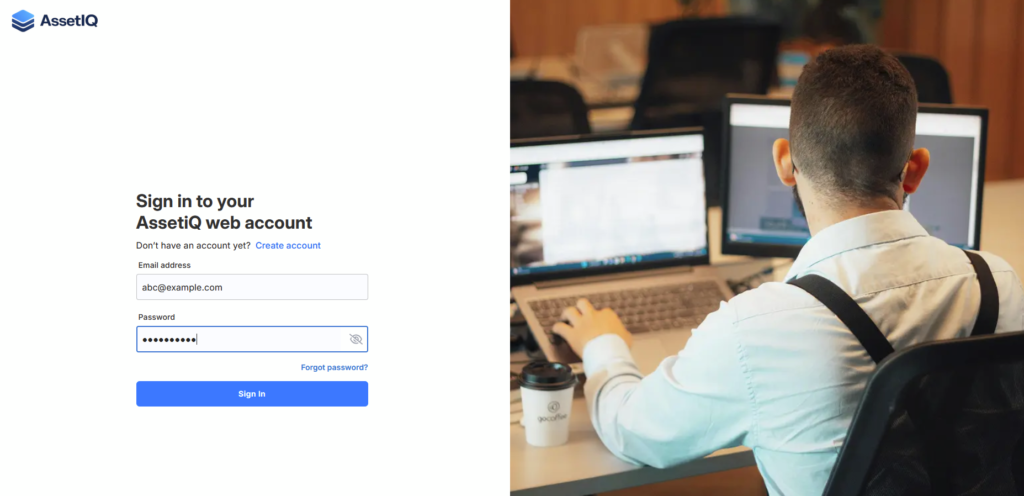
- On the sign-in page, use the sign-in method configured for your account.
- Enter the requested account information. Do not share your password or verification code with anyone.
- Select the sign-in action shown on the page.
- If additional verification is requested, complete it using your registered method.
- Confirm that AssetIQ opens the landing page and modules permitted for your assigned role.
Expected result #
AssetIQ opens without an error and displays the landing page, navigation items and functions permitted for your assigned role.
If you cannot sign in #
- Check that you are using the correct AssetIQ address for your organisation.
- Check the spelling of your account identifier and try again.
- If password reset is enabled for your organisation, use the approved reset process after that article is confirmed.
- Contact your AssetIQ administrator if your account may be inactive, locked or missing the required access.
Related articles #
- Reset your password (publication pending verification)
- Understand the AssetIQ navigation and dashboard
- Contact AssetIQ Support


