
Use this article when you cannot remember your AssetIQ password or need to create a new one using the password-reset process available from the sign-in page.
Before you begin #
- Use the email address registered with your AssetIQ account.
- Make sure you can access that email inbox.
- Use the AssetIQ application address supplied by your organisation.
- If your organisation uses single sign-on, follow its identity-provider password process instead.
Reset your password #
- Open the AssetIQ sign-in page.
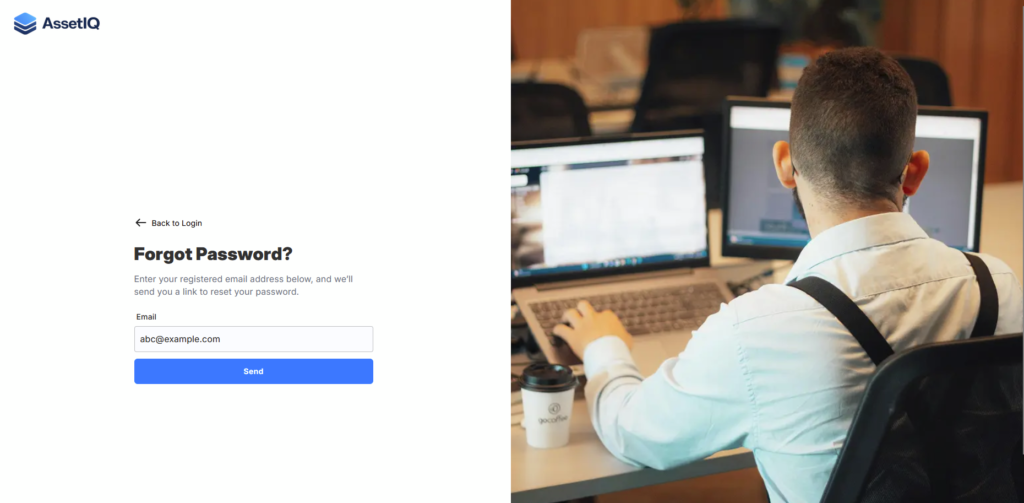
- Select the password-reset option displayed on the sign-in page.
- Enter the email address registered to your AssetIQ account.
- Submit the request and check your email inbox for the AssetIQ password-reset message.
- Open the message and follow the secure password-reset link.
- Enter and confirm a new password that meets the requirements displayed on the page.
- Submit the new password.
- Return to the AssetIQ sign-in page and sign in with the new password.
Expected result #
AssetIQ accepts the new password and allows you to sign in with your registered account.
If you do not receive the reset email #
- Confirm that you entered the email address registered to your AssetIQ account.
- Check your spam or junk-email folder.
- Wait a few minutes before submitting another request.
- Ask your AssetIQ administrator to confirm that your account is active and the registered email address is correct.
- Contact support if the reset message still does not arrive.
Security guidance #
- Never share a password-reset link or verification code.
- Use the most recent reset message if you requested more than one.
- Choose a unique password and do not reuse it on other services.
- If you did not request a password reset, do not follow the link; report the message to your administrator.


