
Skip to content
No results
  • AssetIQ Help Portal
assetiq logo final horizontal jan 2026 trans website logo
Success Center
  • Home
  • Getting Started
assetiq logo final horizontal jan 2026 trans website logo
Success Center

Getting Started

6
  • Welcome to AssetIQ
  • Sign in to AssetIQ
  • Reset your AssetIQ password
  • Understand the Dashboard
  • Change Your Language in AssetIQ
  • Navigate AssetIQ and Use the Sidebar

Asset Management

8
  • Add Your First Asset
  • Edit an Asset
  • Find and Filter Assets
  • Assign an Asset
  • Import Assets
  • Export Asset Data
  • Generate Asset QR Codes
  • Scan an Asset QR Code

Maintenance

5
  • Introduction to Maintenance and Work Orders
  • Create a Work Order
  • Understand Work-Order Statuses
  • Review the Next Maintenance Date
  • Update and Complete a Work Order

Inspections

8
  • Introduction to Asset Inspections
  • Understand Inspection Types and Checklists
  • Create and Assign an Asset Inspection
  • Conduct and Submit an Asset Inspection
  • Record Inspection Findings and Defects
  • Review and Approve Inspection Results
  • View and Export Inspection Results
  • Create Follow-up Actions or Work Orders

Asset Audits

6
  • Introduction to Asset Audits
  • Understand Asset Audit Types
  • Create and Assign an Asset Audit
  • Conduct and Submit an Asset Audit
  • Review Audit Discrepancies
  • Export Asset Audit Results

Rental Management

12
  • Introduction to Rental Management
  • Understand the Rental Job Lifecycle and Statuses
  • Create a Rental Job
  • Add and Allocate Assets to a Rental Job
  • Check Asset Availability and Resolve Conflicts
  • Dispatch Assets and Start a Rental
  • Extend or Update an Active Rental
  • Return Assets and Record Their Condition
  • Close a Rental Job
  • View and Export Rental History
  • Manage Overdue Rentals and Outstanding Assets
  • Manage Rental Damage and Missing Items

Scheduling & Resources

8
  • Introduction to Scheduling and Resources
  • Understand the Scheduling Calendar
  • Find and Filter Scheduled Activities
  • Schedule Assets and Resources
  • Reschedule or Update an Activity
  • Identify and Resolve Scheduling Conflicts
  • Manage Resource Availability and Unavailability
  • View Asset and Resource Schedules

Reports & Analytics

8
  • Introduction to Reports and Analytics
  • Understand Dashboards and Key Metrics
  • Filter and Analyze Report Data
  • View Asset Management Reports
  • View Maintenance and Inspection Reports
  • View Rental and Utilization Reports
  • Export Report Data
  • Troubleshoot Report and Dashboard Data

Administration

2
  • Set Up Master Data
  • Invite Users and Assign Roles
View Categories
  • Home
  • Documentation
  • Getting Started
  • Navigate AssetIQ and Use the Sidebar

Navigate AssetIQ and Use the Sidebar

2 min read

0:00 / 3:32
  • View as Markdown Open this page as plain Markdown (opens in a new tab)
  • Open in ChatGPT Ask questions about this page (opens in a new tab)
  • Open in Claude Ask questions about this page (opens in a new tab)
  • Open in Google AI Studio Ask questions about this page (Google account required) (opens in a new tab)

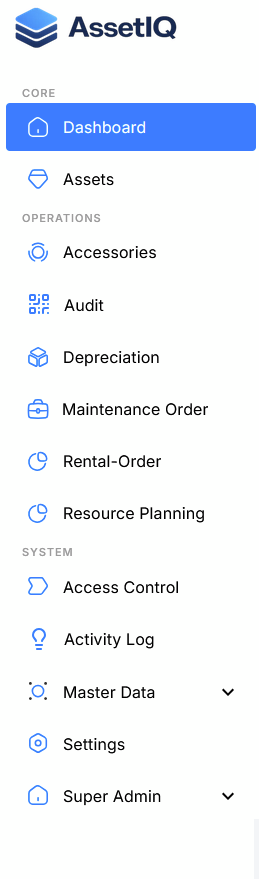
AssetIQ uses a sidebar to provide access to the dashboard, asset-management features and other modules available to your account.

The options displayed in the sidebar depend on your assigned role and permissions. You may therefore see different menu items from another user in your organisation.
image

Before you begin #

Make sure that:

  • You are signed in to an active AssetIQ account.
  • Your administrator has assigned the appropriate role.
  • You are using a supported web browser.
  • You have access to the required organisation, entity or location.

Understand the AssetIQ sidebar #

The sidebar appears on the side of the AssetIQ application. It provides access to the modules and functions available to your account.

Depending on your permissions and the features enabled for your organisation, the sidebar may include options such as:

  • Dashboard
  • Asset Management
  • Maintenance and Work Orders
  • Inspections
  • Asset Audits
  • Rental Management
  • Scheduling and Resources
  • Reports and Analytics
  • Administration

You will only see modules that your role permits you to access.

Note: The sidebar shown in your account may differ from screenshots in this guide. Module visibility is controlled by your organisation’s configuration and your assigned permissions.

Open a module from the sidebar #

  1. Sign in to AssetIQ.
  2. Locate the sidebar.
  3. Find the module you want to use.
  4. Select the module name or icon.
  5. If a submenu appears, select the required page or function.
  6. Confirm that the selected page opens in the main content area.

The active module or page may be highlighted in the sidebar to help you understand your current location.

Expand or collapse the sidebar #

If the sidebar supports expanded and collapsed views:

  1. Locate the sidebar control near the top or edge of the navigation area.
  2. Select the control to collapse the sidebar.
  3. Use the module icons to navigate while the sidebar is collapsed.
  4. Select the control again to display the complete module names.

Collapsing the sidebar can provide additional workspace on smaller screens.

Tip: If you are unsure what an icon represents, expand the sidebar to display the corresponding module name.

Return to the dashboard #

To return to your AssetIQ dashboard:

  1. Locate Dashboard in the sidebar.
  2. Select Dashboard.
  3. Confirm that your permitted dashboard cards, counts and charts are displayed.

The dashboard provides an overview of the information and activities available to your role.

Understand role-based navigation #

AssetIQ uses role-based permissions to control the menu items, pages, actions and data available to each user.

This means:

  • Administrators may see configuration and user-management functions.
  • Asset managers may see asset creation, editing and assignment actions.
  • Maintenance users may see work orders and maintenance functions.
  • Reporting users may see reports available to their role.
  • Restricted users may see only specific modules, entities, locations or departments.

Hiding a module from the sidebar helps prevent users from accessing functions outside their responsibilities.

A module or menu item is missing #

If you cannot find an expected module:

  1. Refresh the page and check the sidebar again.
  2. Confirm that you are signed in to the correct AssetIQ account.
  3. Expand the sidebar if it is collapsed.
  4. Confirm that you selected the correct organisation, entity or location where applicable.
  5. Ask your AssetIQ administrator to review your role and permissions.

Do not ask another user to share their credentials or use an administrator’s account.

You cannot open a visible menu item #

If a menu item is visible but the page does not open:

  1. Refresh the browser.
  2. Sign out and sign in again.
  3. Confirm that your internet connection is working.
  4. Try the organisation’s supported browser.
  5. Record the module name and any displayed error message.
  6. Contact your AssetIQ administrator if the problem continues.

Next steps #

Continue learning how to use AssetIQ:

  • Understand the Dashboard — Learn how to interpret dashboard information.
  • Set Up Master Data — Prepare the reference information required by AssetIQ.
  • Add Your First Asset — Create and verify an asset record.

Updated on September 1, 2026
getting-started

What are your Feelings

  • Happy
  • Normal
  • Sad

Share This Article :

  • Facebook
  • X
  • LinkedIn
  • Pinterest
Change Your Language in AssetIQWelcome to AssetIQ

Powered by BetterDocs

Leave a ReplyCancel Reply

Your email address will not be published. Required fields are marked *

Table of Contents
  • Before you begin
  • Understand the AssetIQ sidebar
  • Open a module from the sidebar
  • Expand or collapse the sidebar
  • Return to the dashboard
  • Understand role-based navigation
  • A module or menu item is missing
  • You cannot open a visible menu item
  • Next steps

AssetIQ - Success Center

Your go-to resource for AssetIQ documentation, guides, and support. Learn, explore and get the most out of AssetIQ.

    Resources

    • Video Tutorials
    • Release Notes
    • Best Practices
    • FAQs

    Company

    • About AssetIQ
    • AssetIQ Website
    • Privacy Policy
    • Terms of Service

    Copyright © 2026 - AssetIQ by Arvant Technologies Pte Lte