
AssetIQ maintenance and work orders help organisations plan, assign, track and complete maintenance activities for their assets.
A work order provides a structured record of the maintenance activity, responsible person, relevant dates, progress and outcome.
What is maintenance management? #
Maintenance management is the process of planning and recording the work required to keep assets safe, reliable and available.
AssetIQ helps organisations maintain a central record of maintenance activities associated with each asset.
Depending on your organisation’s configuration, maintenance activities may include:
- Preventive maintenance
- Corrective maintenance
- Routine servicing
- Inspections requiring maintenance work
- Repairs
- Component replacement
- Other organisation-specific maintenance activities
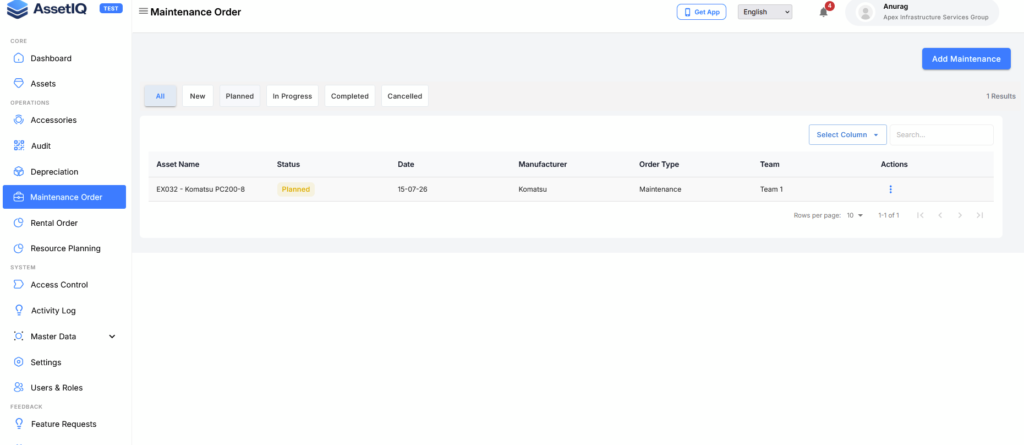
What is a work order? #
A work order is a controlled record of work to be performed on an asset.
It can help your organisation record:
- The asset requiring maintenance
- The type or purpose of the work
- The work description
- Priority
- Planned dates
- Responsible person or team
- Work-order status
- Completion information
- Notes and supporting attachments
The exact fields available depend on your AssetIQ configuration and assigned permissions.
When should you create a work order? #
Create a work order when maintenance or repair work needs to be formally planned, assigned and tracked.
Examples include:
- An asset is due for scheduled servicing.
- A repair is required.
- A maintenance issue has been identified.
- A component needs to be inspected or replaced.
- Follow-up work is required after another operational activity.
- Maintenance needs to be assigned to a responsible user.
Do not create duplicate work orders for the same activity. Search for existing open work orders before creating a new one.
Before creating a work order #
Make sure that:
- The asset exists in AssetIQ.
- You have permission to create work orders.
- The required maintenance master data is available.
- The responsible person or team exists in AssetIQ.
- You understand the work that needs to be performed.
- The planned dates and priority have been confirmed where required.
Tip: Review the asset record and existing work orders before creating a new work order.
Typical work-order lifecycle #
A work order generally progresses through the following stages:
- The maintenance requirement is identified.
- A work order is created against the correct asset.
- The work is planned and assigned.
- An authorised user starts or updates the work.
- Notes, findings and supporting information are recorded.
- The maintenance activity is completed.
- The completed work order is reviewed.
- The asset’s maintenance information is updated where applicable.
The exact status names and permitted transitions depend on the approved AssetIQ workflow.
Work-order roles and permissions #
The work-order information and actions available to you depend on your role.
For example:
- An authorised user may create a work order.
- A maintenance coordinator may plan and assign the work.
- An assigned user may update progress and record the completed activity.
- A manager may review work-order information and maintenance history.
- A restricted user may be able to view only selected work orders or assets.
If a required action is unavailable, ask your AssetIQ administrator to review your role and access scope.
Work orders and asset records #
Each work order should be connected to the asset requiring maintenance.
This helps users:
- Review open maintenance work.
- Understand an asset’s maintenance history.
- Track recurring activities.
- Review maintenance dates.
- Investigate repeated problems.
- Support operational and reporting requirements.
Always confirm that you selected the correct asset before saving a work order.
Next maintenance date #
AssetIQ may calculate or update the next maintenance date after a qualifying maintenance activity is completed.
The resulting date depends on the approved maintenance rule and configured interval.
After completing a qualifying work order:
- Open the related asset record.
- Review the next maintenance date.
- Confirm that it reflects the approved maintenance interval.
- Report an unexpected date to the responsible administrator.
Do not manually assume a next maintenance date without checking the configured rule.
Maintenance records and attachments #
Where supported, users may add relevant information to a work order, such as:
- Maintenance notes
- Findings
- Completion comments
- Photographs
- Service reports
- Supplier documents
- Other approved attachments
Do not upload confidential or unrelated information. Follow your organisation’s requirements for file types, sizes and data handling.
Work-order best practices #
For accurate maintenance records:
- Select the correct asset.
- Use a clear and specific work description.
- Avoid duplicate work orders.
- Assign the appropriate person or team.
- Use the correct priority.
- Keep the status current.
- Record meaningful completion information.
- Attach supporting evidence where appropriate.
- Confirm the next maintenance date after completion.
- Do not close unfinished work.
A maintenance action is unavailable #
If you cannot create, update or complete a work order:
- Confirm that you selected the correct asset and work order.
- Check whether your assigned role permits the action.
- Confirm that the work order is in a status that allows the action.
- Check that you have access to the relevant organisation, entity or location.
- Refresh the page and try again.
- Ask your AssetIQ administrator to review your access if the problem continues.
Next steps #
- Create a Work Order — Create and assign maintenance work for an asset.
- Update and Complete a Work Order — Record progress and complete the maintenance activity.
- Understand Work-Order Statuses — Learn how a work order moves through its lifecycle.
- Review the Next Maintenance Date — Confirm when the asset is next due for maintenance.
- Find and Filter Assets — Locate the asset requiring maintenance.


